Built for the MSI Claw 8 AI+

Longer battery. Steadier frame rates.

SteamOS was built for AMD handhelds. On an Intel one most of the power saving quietly does nothing: the settings you change have no effect, and the performance overlay leaves the wattage blank. This project hooks it back up, and gives you two panels in the Steam menu — one for how many frames you want and what they cost, one for how full the battery gets.

Free and open source. No account, no telemetry.

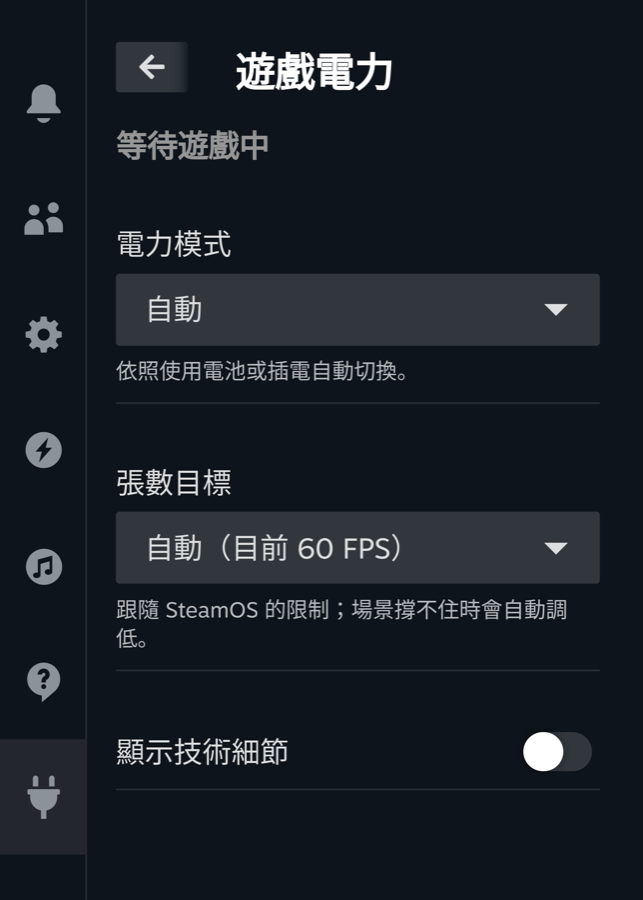
A phone-shaped panel listing two settings, Power profile set to Automatic and Frame rate target set to Automatic at 60 FPS, above a switch for technical details
The Game Power panel, captured on an MSI Claw 8 AI+
-26%
power while you are not touching it
-15%
power at the same frame rate
0.22 W
draw in suspend

Measured on an MSI Claw 8 AI+ during real play. The readings behind each figure are published in the repository.

What it does

Two panels you use, and a service you never see.

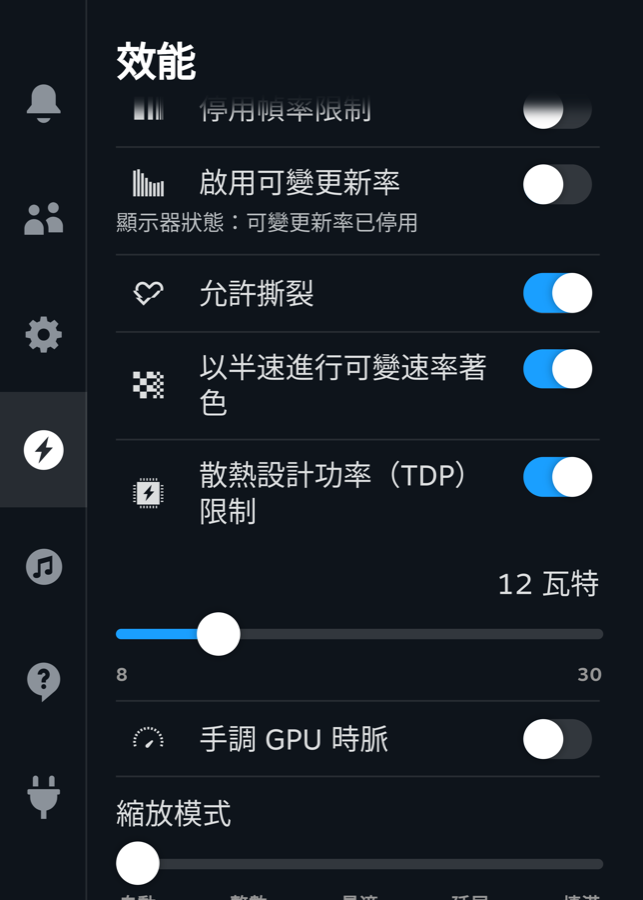
The TDP slider Steam already has, finally connected

Steam's performance menu has a wattage slider built in. On an Intel handheld, dragging it does nothing at all: there is nothing on the other end listening. This connects it, so the slider moves real power limits. Nothing new to learn — the control you already know stops being decorative.

  • Works in Steam's own menu, so there is no panel to open first.
  • Per-game, the way Steam already remembers your settings.
  • Game Power stays underneath it, and never asks for more power than you allowed.
A settings list with Thermal Design Power limit switched on, a slider at 12 watts, and 8 and 30 marked at each end of its track
Steam's own performance menu on an MSI Claw 8 AI+. The 8-30 watt range is reported by this project.

Game Power

You say how many frames you want; it works out the rest.

  • Put it down and it drops to 30 FPS. Touch a button and it is back.
  • The moment it stutters, it lets go. Battery life never costs you smoothness.
  • It only ever turns things down, and never past a limit you set yourself.

Charge Limit

Batteries age fastest when they are charged to full and then left sitting there.

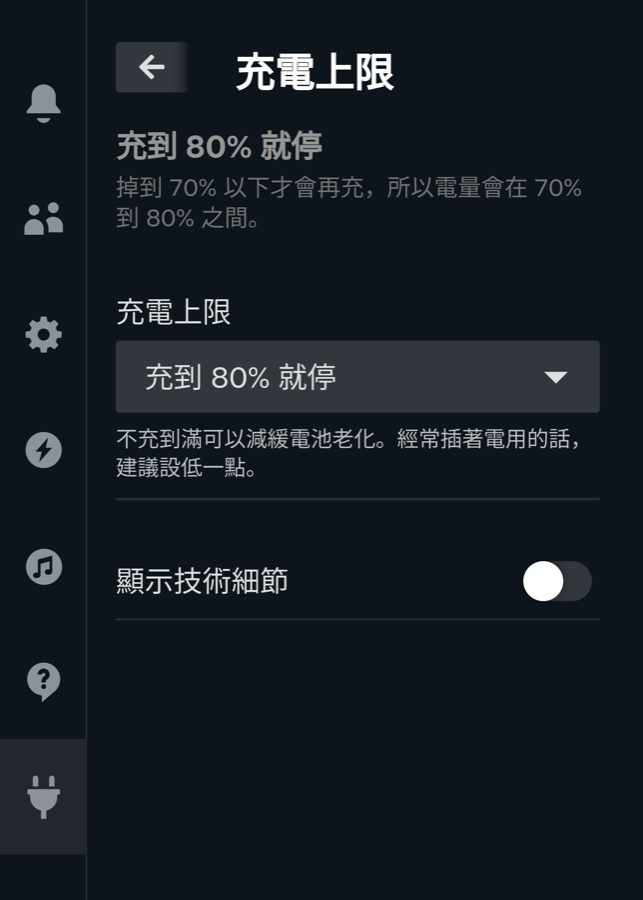
  • 60%, 80%, or all the way to full — your call.
  • The hardware remembers, so it survives shutdowns, reboots and SteamOS updates.
  • Tops itself back up when it drifts too far down. Nothing for you to manage.
A panel headed Charging stops at 80%, with a full-width dropdown reading Stop at 80%
The Charge Limit panel, captured on an MSI Claw 8 AI+

And a few things you will never think about again

See what your settings actually cost

Want to know how much that setting you just changed really saved? On a stock Intel handheld you cannot: the processor and graphics wattage in the performance overlay stay blank forever. Install this and the numbers turn up.

The screen at its real specification

Full 1920×1200, every refresh rate from 48 to 120 Hz, and the colour glitch that Intel handhelds hit under gamescope taken care of. Steam's refresh rate slider covers the whole range instead of a couple of safe guesses.

A SteamOS update will not undo it

SteamOS updates swap out the system partition, which is normally how additions like this quietly disappear. Everything is put back at the next boot, without you noticing it happened.

Installing it

Decky Loader has to be on the handheld already. Everything below happens on the handheld itself unless a step says otherwise.

Recommended

One command, on the handheld

Switch the handheld to Desktop Mode, open the terminal (Konsole), and paste this in. It installs signed packages, so from then on updates arrive through pacman along with everything else on the system.

Konsoleon the handheld, in Desktop Mode
curl -fsSL https://rivoreo.github.io/steamos-intel-handheld/rivoreo-steamos/bootstrap.sh | sudo bash

It pins the signing key by fingerprint and configures the repository with SigLevel = Required TrustedOnly, so nothing unsigned can ever install from it.

Without packaging

Install straight from source

Also one command on the handheld, but it copies files into place instead of installing packages, so pacman will not carry the updates. Use it if you would rather not add a repository, or to try a change before it is released.

Konsoleon the handheld, in Desktop Mode
curl -fsSL https://raw.githubusercontent.com/rivoreo/steamos-intel-handheld/main/scripts/install.sh | sudo bash

Never set a password on this handheld? Run passwd once first — SteamOS ships without one, and sudo needs it.

For developers

Push your own working copy

This one runs on a second machine — your desktop or laptop, not the handheld — and copies your local checkout across over SSH. Use it when you are changing the code; end users want the command in the first card.

Shellon your development machine
git clone https://github.com/rivoreo/steamos-intel-handheld
cd steamos-intel-handheld
scripts/install-on-device.sh root@YOUR-HANDHELD

Needs SSH as root on the handheld.

Where it shows up

Everything lives in the Steam quick access menu, the one behind the button with three dots.

  • Open the quick access menu and pick the Decky plug icon.
  • Game Power and Charge Limit are both listed there.
  • Sensible defaults are already applied, so there is nothing you must configure.

Questions worth asking

Which handhelds does this support?

It is developed and measured on an MSI Claw 8 AI+. Other Intel handhelds may well work, but none have been tested, and the charge limit in particular speaks to MSI hardware directly. When it cannot recognise your machine it says so rather than guessing.

Can it damage my handheld?

It only ever lowers power below the limits you have already set, never raises them, and it records the original state before touching anything so it can put everything back. If a write fails it stops rather than carrying on blind. The charge limit uses the same controller setting the factory firmware uses.

Will a SteamOS update undo it?

A SteamOS update replaces the system partition, which is why the installed files are restored at boot and every setting that matters is kept outside that partition. The charge limit lives in the hardware, so updates cannot reach it at all.

Does it send any data anywhere?

No. There is no account, no telemetry and no network access while it runs. Measurements stay on the device, and the figures quoted on this page were taken by hand and published in the repository.

Do I have to use the panels?

No. Every setting is reachable from a command line tool, and the whole thing can be set to watch without acting, or switched off entirely, from either the panel or the command line.